 VIVALDI
Features · Ad blocker
Vivaldi ad blocking
with controls for each site
Vivaldi filters ads and trackers using built-in blocking rules. Choose a level for all sites or adjust individual sites. Results depend on the lists you enable and how each website serves its content.
What built-in blocking changes
Fewer ad requests
Blocking matched requests can reduce downloads on ad-heavy pages. The effect on loading time depends on the site, your connection and the rules in use.
No extensions needed
The blocker is part of Vivaldi, so a separate extension is optional. Check your selected blocking level before expecting ads to disappear.
Less exposure to known trackers
Filtering known tracking sources reduces some third-party requests. It does not prevent every tracking method or replace protection against malicious files.
No blocker subscription
The built-in blocker has no separate subscription. You can change blocking levels without buying an upgrade.
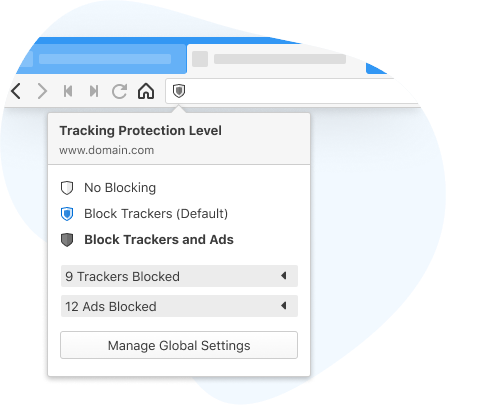
Three blocking levels
Choose how much to block
For a news article with distracting ads, choose ad and tracker blocking. If a sign-in form or embedded player stops working, test a lower level on that site.
On desktop, open Settings > Privacy and Security > Tracker and Ad Blocking for the global level. The address-bar shield changes the level for the current site.
- No BlockingThis content blocker does not filter requests; other browser protections remain separate.
- Block TrackersFilters known tracking sources. Some ads may also be removed.
- Block Trackers and AdsAdds ad filtering to tracker blocking, subject to rules and exceptions.
Built-in blocking or an extension?
The built-in blocker suits browsing where you want controls in the address bar without managing another add-on. It is not automatically a replacement for every extension feature.
A separate blocker may offer different filters or tools. Running two blockers can make a broken page harder to diagnose: test one at a time and check each tool’s exceptions.

| Feature | Third-party extension | Built into Vivaldi |
|---|---|---|
| Installation | Install separately and review its permissions | Included in the browser; choose a blocking level |
| When ads are blocked | Depends on the extension’s rules and supported APIs | Matched requests can be stopped before download |
| Permissions and security | Access depends on the permissions you grant | No separate add-on permissions to approve |
| Performance | Resource use varies by extension and enabled filters | Filtering uses resources; speed gains vary by page |
| Experience | Separate controls; filtering may affect site functions | Address-bar controls; filtering may affect site functions |

What ad blocking does not protect against
Malvertising means advertising used to promote scams or deliver harmful content. Blocking a matching ad source may reduce exposure, but unlisted sources and deceptive content can still appear.
On a download site, treat a prominent “Download” banner as a separate element from the file link you intended to use. A blocker does not verify the publisher or contents of a file.
For a payment page or account login, check the destination and browser warnings. Keep the browser updated, and review installed extensions rather than relying on ad blocking alone.
Ad blocking and browser privacy
Ad blocking filters page content and network requests; it does not hide your IP address or prevent a site from knowing that you signed in.
Browser privacy is broader than the blocker. Vivaldi’s policy describes installation counting and optional crash reporting, while websites and connected services have their own data practices.
Blocking is a control, not a guarantee of anonymity.
Review both a blocker’s permissions and its privacy terms. An extension’s access depends on its requested permissions, not simply on whether it blocks ads.
Use site exceptions deliberately
You can allow ads on a publication you value while keeping stronger blocking elsewhere. A site exception changes filtering; it does not verify the site or its advertisers.
- 01
Start with the global blocking level that fits your browsing preferences.
- 02
For a specific site, use the shield to select a different level and reload to check the result.
- 03
If a video, form or checkout fails, lower blocking on that site temporarily to identify the cause.
- 04
Review saved exceptions periodically. Subscriptions or direct donations are other ways to support publishers.
FAQ
Frequently asked questions
Blocking behavior, settings and common page problems.
01What is ad blocking?
Ad blocking filters advertising requests or hides matching page elements. Tracker blocking targets known tracking sources. The categories overlap, so tracker blocking can also remove some ads.
02How does ad blocking work?
A blocker checks requests against rules and can cancel matches before content downloads. Cosmetic rules can hide page elements. Hiding an element is different from preventing its network request.
03Will every ad be blocked?
No. New ad sources, first-party promotions and changing video delivery can escape filters. Site exceptions and an enabled partner-ad allowance can also leave ads visible.
04Does ad blocking mean no data is collected?
Ad blocking does not mean the browser collects no data. Vivaldi’s browser policy describes installation-counting data and optional crash reports. Check that policy separately from the website’s privacy terms.
05How do I turn ad blocking on or off?
On desktop, select a global level in Settings > Privacy and Security > Tracker and Ad Blocking, or use the shield for a site exception. No Blocking disables this filtering for the chosen scope.
06Which blocking lists does Vivaldi use?
Vivaldi documents EasyList for ads, DuckDuckGo Tracker Radar for trackers and optional EasyPrivacy rules. Check enabled sources in your version; regional lists and partner-ad allowances can change results.
07What if I only want to block ads on one site?
Set a global level, then use the shield on the chosen site to override it. If an override seems ineffective, review saved exceptions and any separate blocking extension.
08How can I see how many ads were blocked?
On desktop, open the address-bar shield with blocking enabled to inspect blocked items. Counts describe filter activity, not a measurement of all ads on the page or proof that a site is safe.
Ad blocking
on your terms
Use Vivaldi’s built-in blocker and adjust filtering to each site. No separate blocking extension is required.
Download Vivaldi