 VIVALDI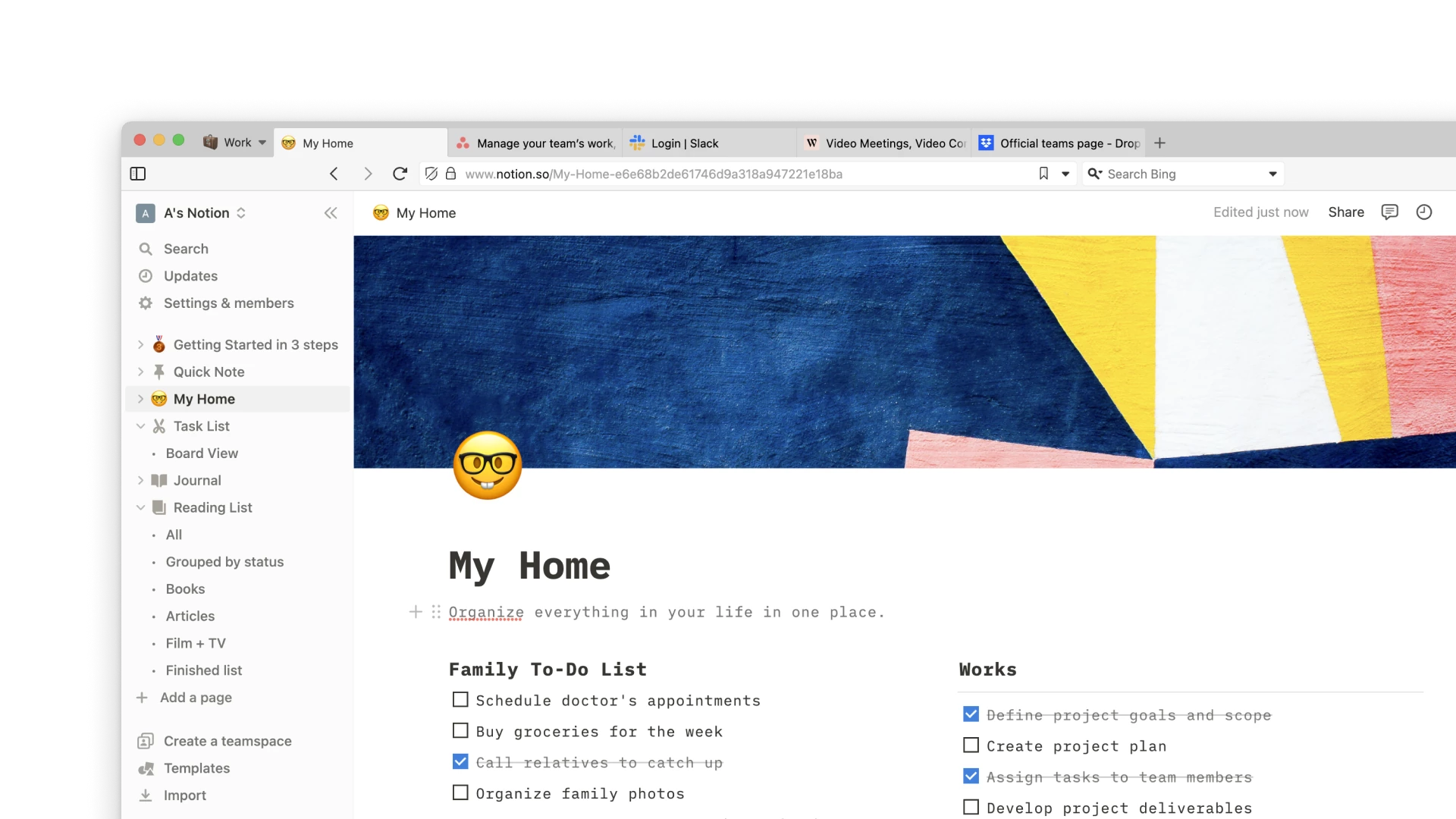
Work
Keep a project brief, task board and reference documents in a Work workspace. Stack pages by task and tile a specification beside the page you are reviewing. Use a separate profile if work and personal accounts must stay apart.
Desktop browser · Workspaces
Keep project tabs in named workspaces and switch between them without closing your pages. Use stacks for smaller groups and tiling to compare pages within a workspace.
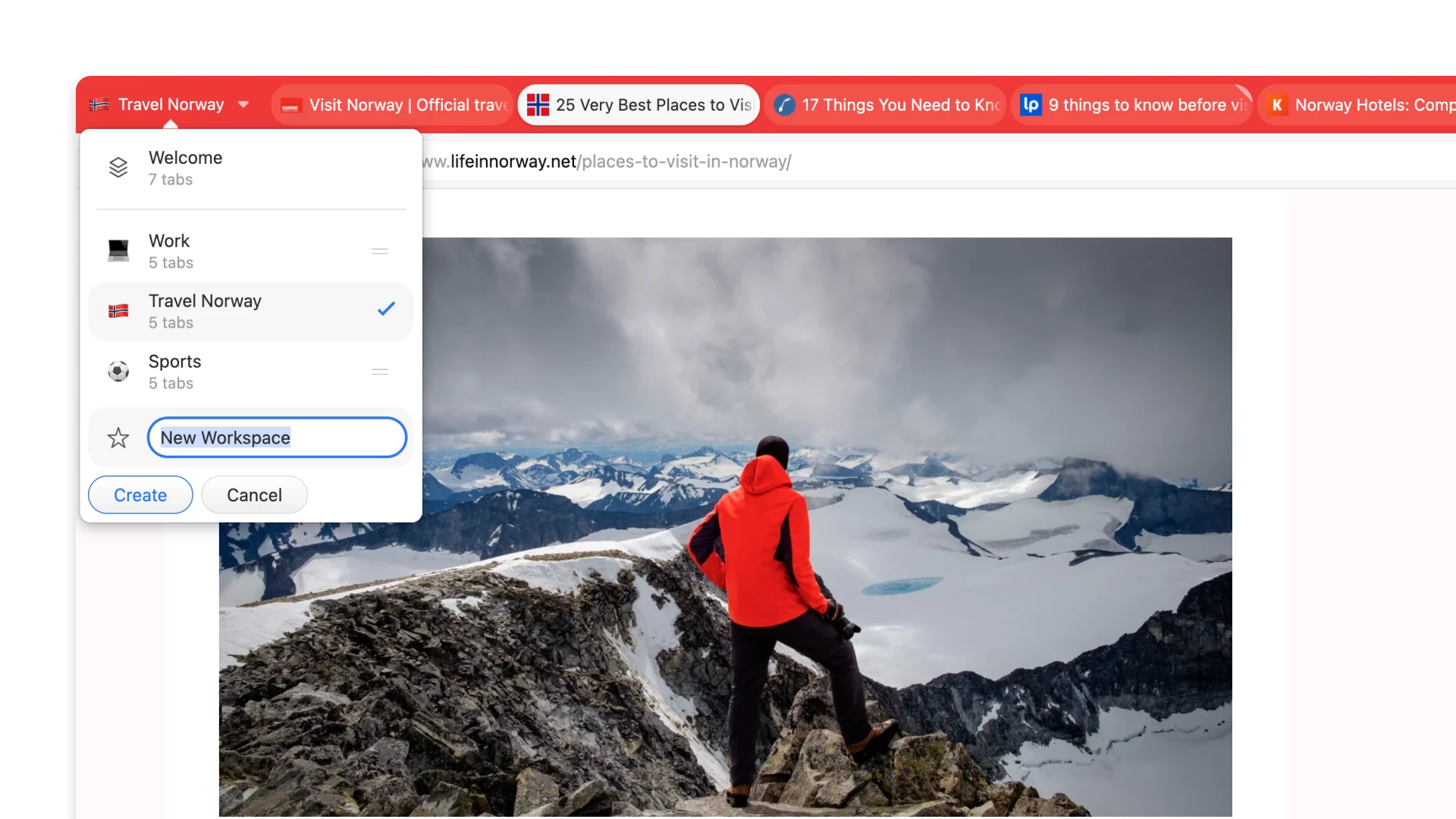
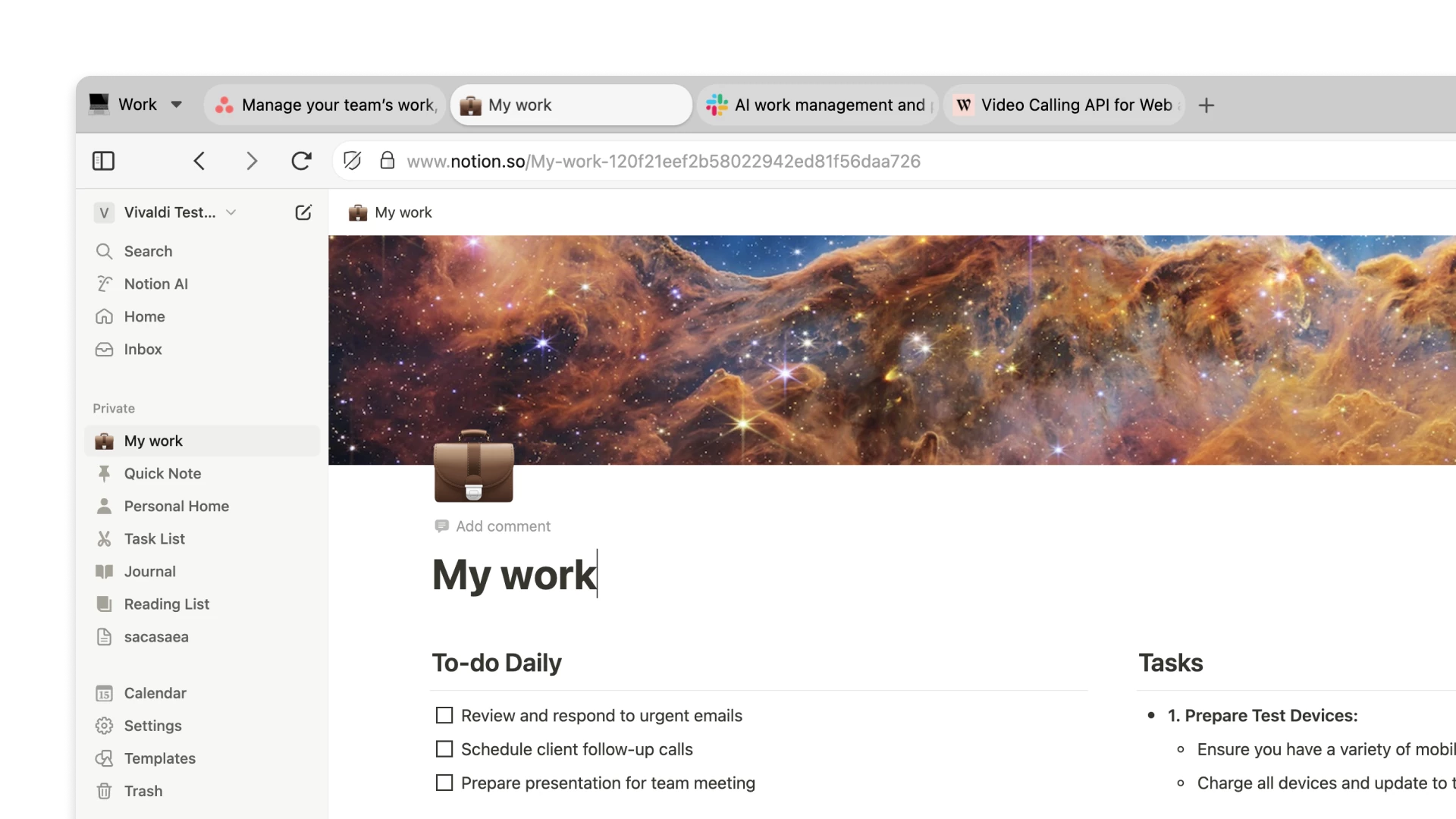

Vivaldi Workspaces organize open tabs by topic in the desktop browser. A workspace can hold a project’s documents, task board and reference pages, while another holds travel plans or personal reading.
Selecting a workspace changes the tabs shown in the window. Workspaces in the same browser profile share cookies, history and settings; use separate profiles when you need different website sign-ins or browser data.
Give each project a named set of tabs, then group related pages into stacks inside it.
Select a workspace from the menu to return to its open pages without rebuilding the tab set.
Other workspaces leave the current tab bar, but their tabs can remain active in the background.
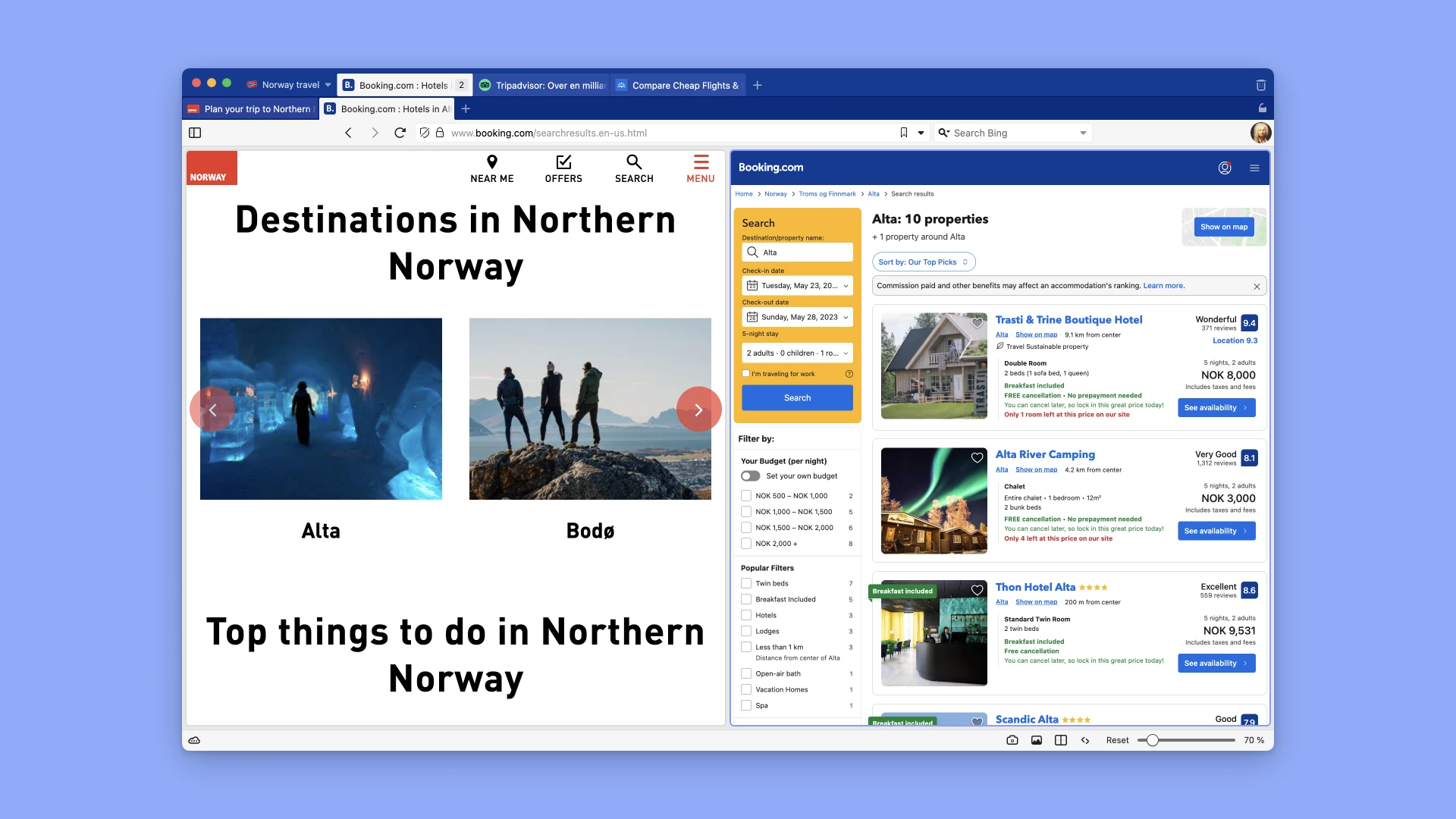
Workspaces + tab stacks + tab tiling
Use a workspace for the whole project and tab stacks for its parts. For example, a website project can have separate stacks for design references, documentation and review tasks.
Tile selected pages inside that workspace when you need to compare them. Two pages may fit comfortably; larger grids leave less room for text and controls, especially on a small screen.
Start with one project. Create a named workspace, choose it from the menu and move related tabs into it.
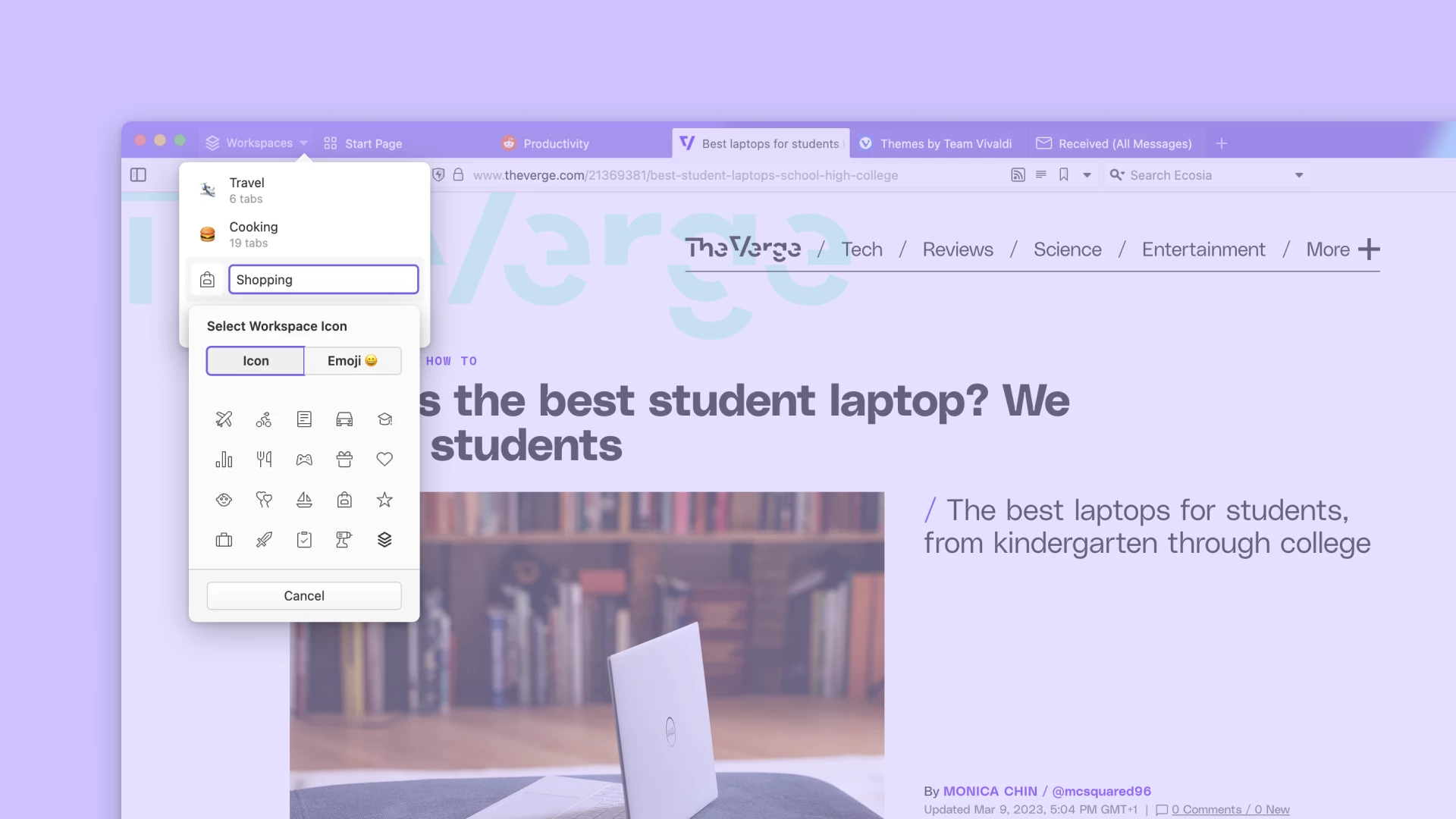
Open the Workspaces menu and choose New Workspace. Name it and select an icon, then decide whether to start empty or move the current window’s tabs into it.
Choose a name you can recognize later, such as Client review or Weekend trip. The toolbar editor lets you place the Workspaces control on a toolbar you use regularly.
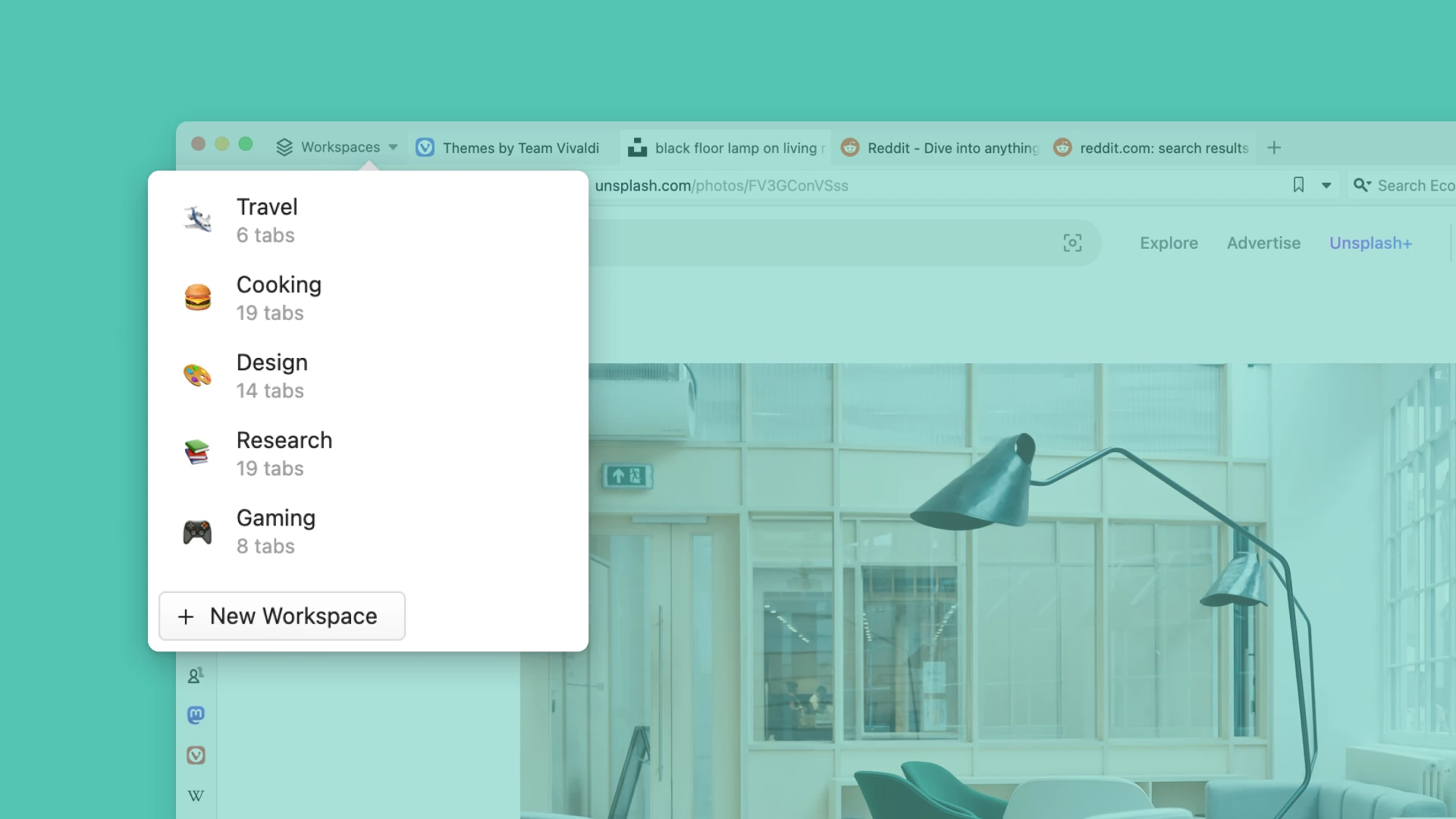
Choose a workspace from the menu, search for it in Quick Commands or use a configured keyboard shortcut. Its tabs replace the set shown in the current window.
If that workspace is already open in another browser window, selecting it brings that window into focus. A workspace is open in one window at a time.
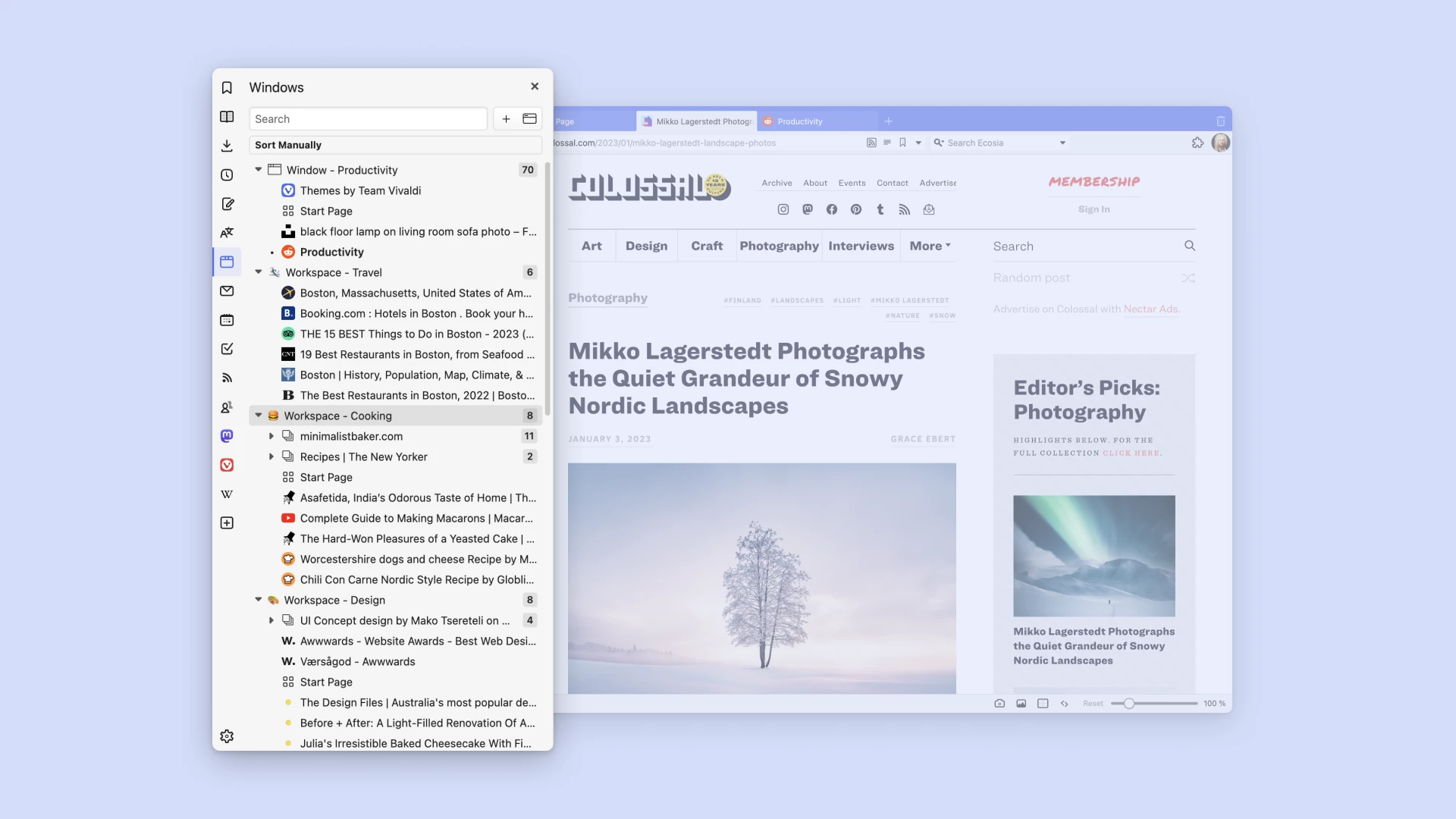
Right-click a tab and use the Workspace destination under Move Tab, or drag it between workspace groups in the Windows and Tabs Panel. You can select several tabs to move a set together.
Moving tabs changes their organization, not their saved website content. Bookmark important pages or save a named session when you need a separate record; save unfinished edits in the website itself.
Use workspaces for sets of pages you return to during a task. These examples organize tabs; they do not create separate accounts or automatically save the content of those pages.
Keep a project brief, task board and reference documents in a Work workspace. Stack pages by task and tile a specification beside the page you are reviewing. Use a separate profile if work and personal accounts must stay apart.
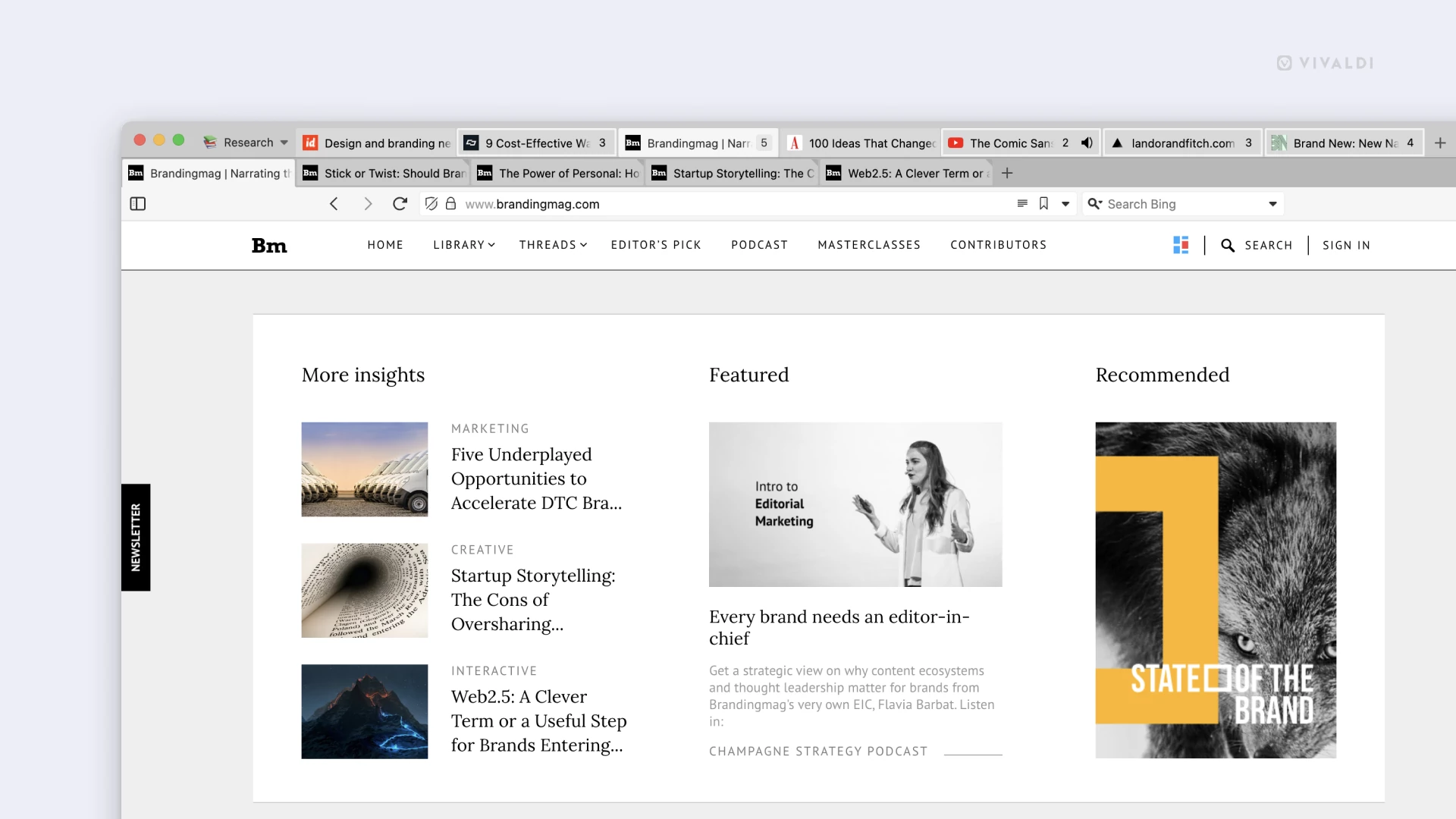
Keep sources for one research question in a workspace and group them by subtopic. Tile two sources to compare claims, then record citations in your document. Browser Notes remain part of the profile rather than a private store for that workspace.
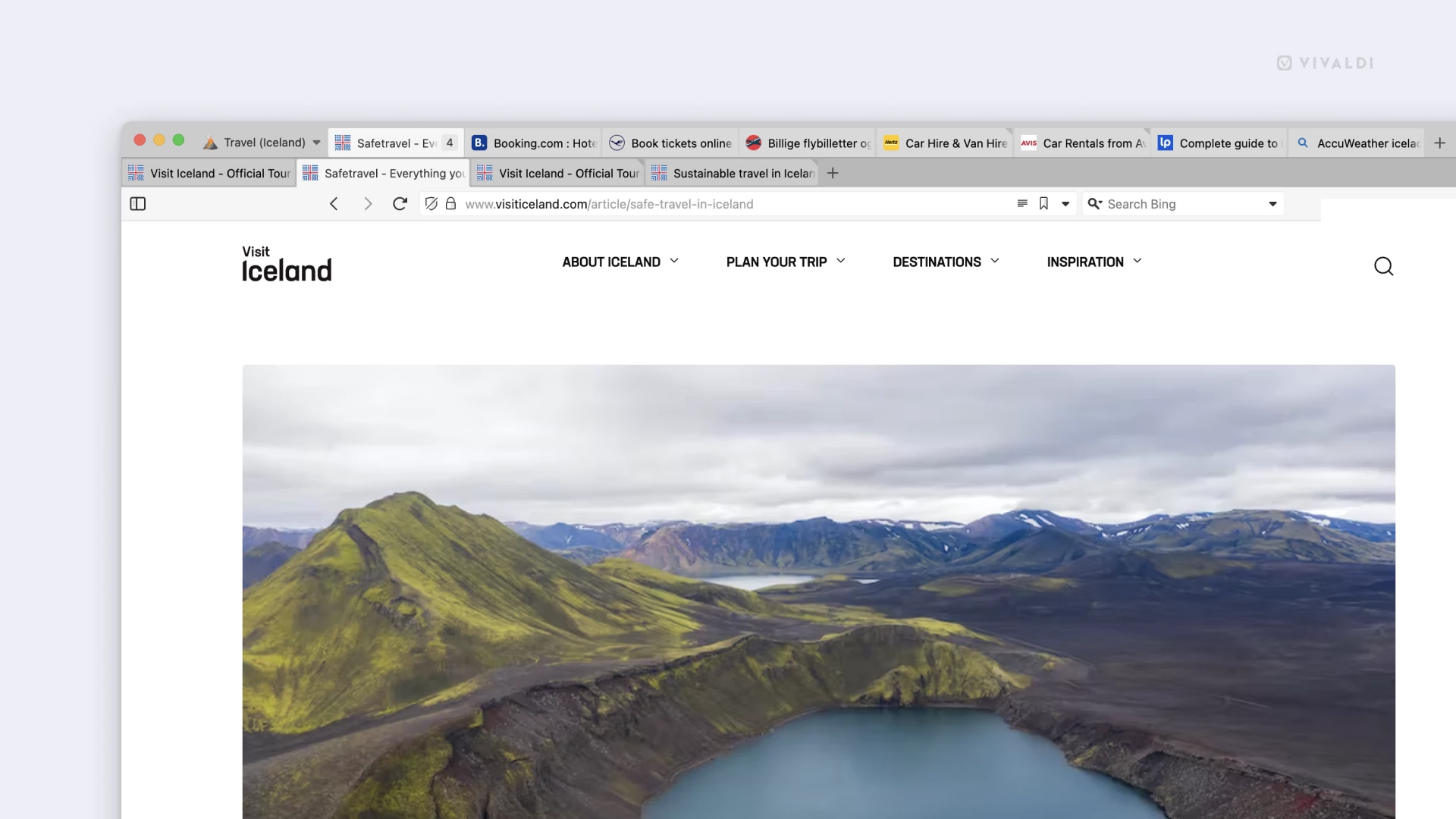
Group flight searches, hotel options and local transport pages for one trip. Tile shortlisted options to compare dates, cancellation terms and total cost. Recheck prices on the booking site before paying.
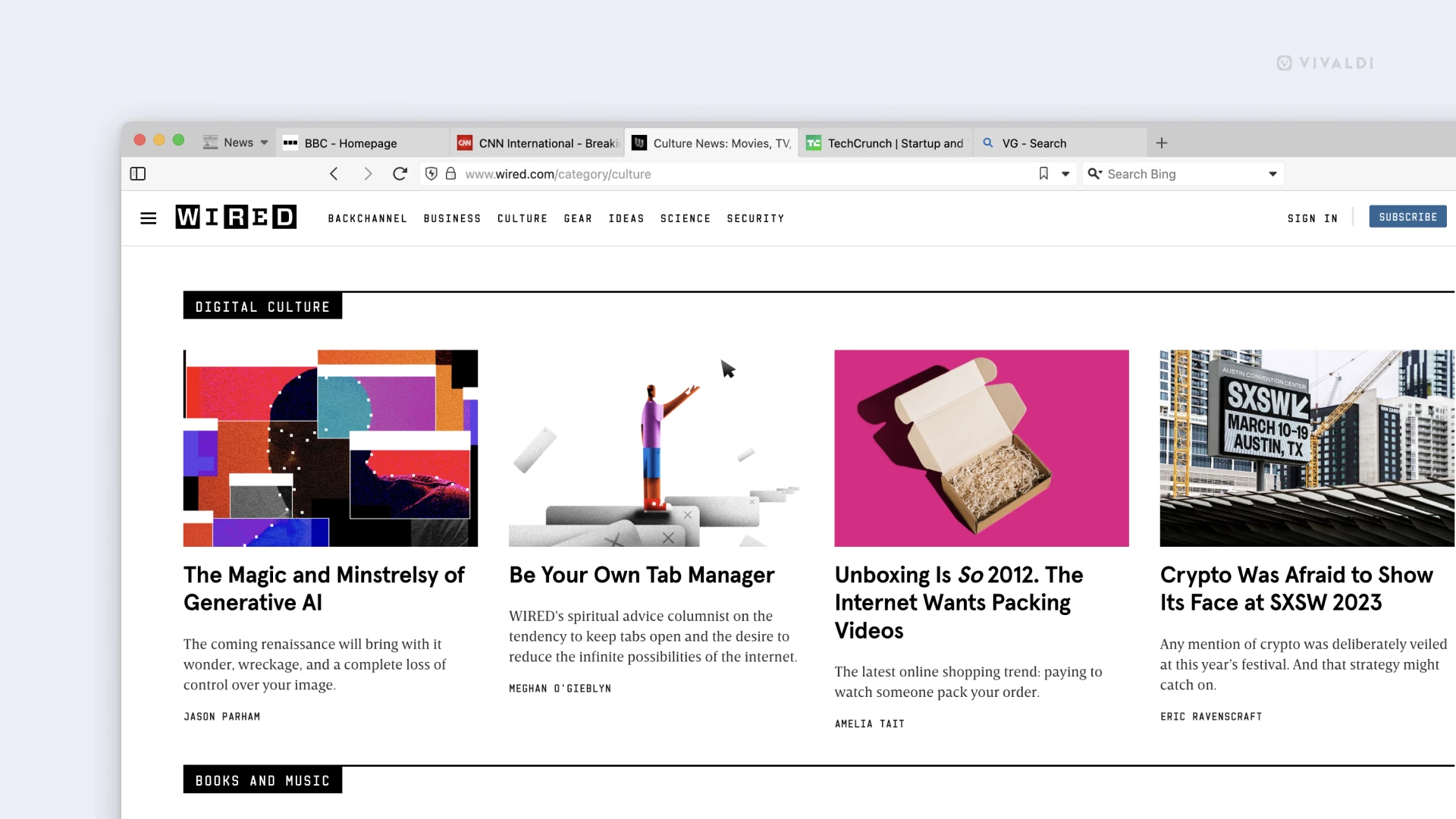
Collect reports about one developing story and separate original sources from commentary with tab stacks. Compare coverage side by side; keeping an article open does not guarantee its content stays current.

Keep fixtures, results and a live stream together during an event. Mute background audio when needed and close or hibernate pages you no longer use; several live streams can still consume substantial resources.
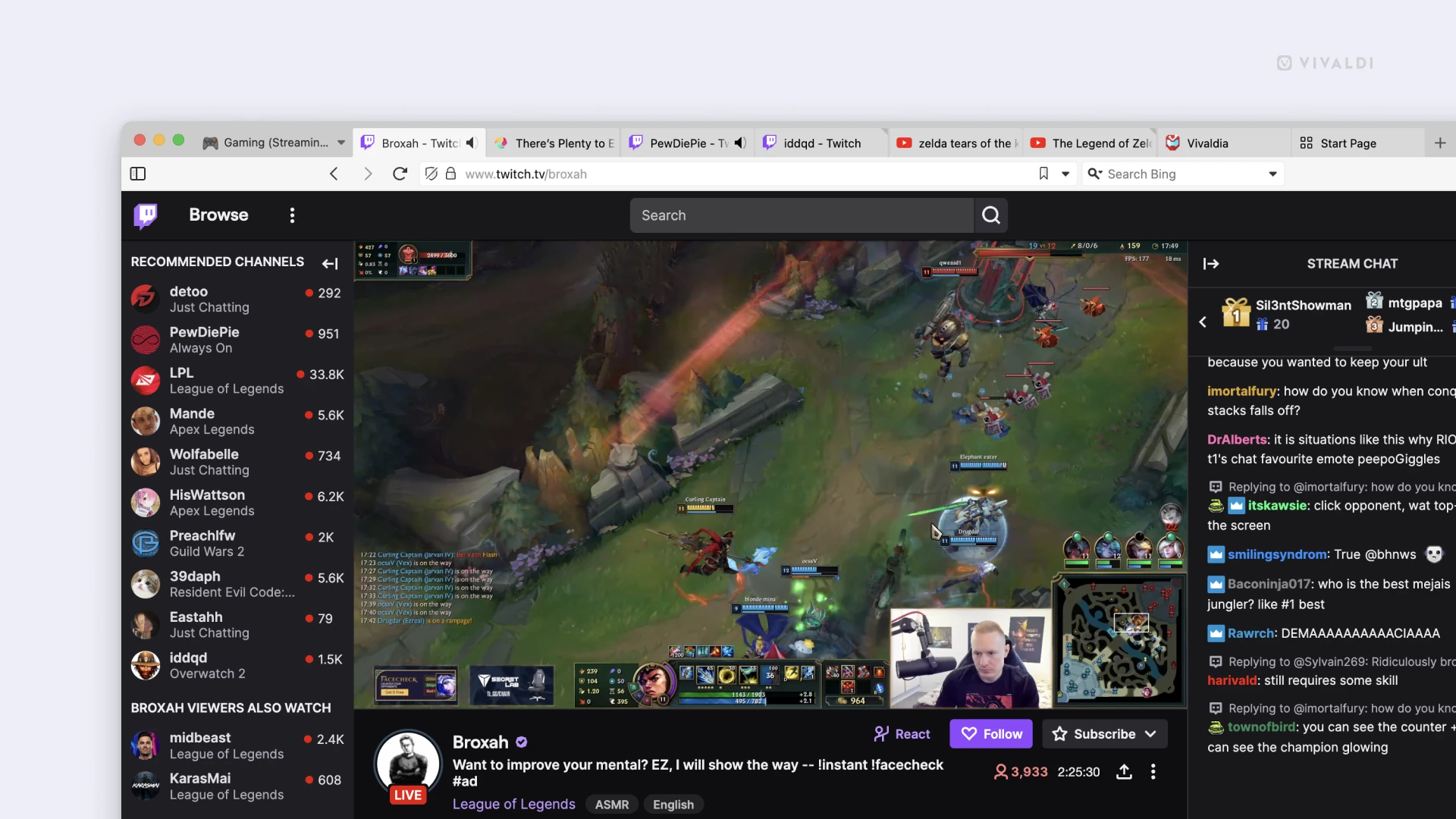
Group a game’s guides, maps and community discussions in one workspace. Tile a reference beside a browser-based tool when useful. A workspace does not change the resource use of a separate game app.
FAQ
Practical answers about tab groups, account separation and returning to a project.
A tab stack groups related tabs within the visible tab bar. A workspace selects a larger set of tabs for a topic or project and can contain several stacks. Neither creates a separate cookie store or website identity; use profiles for separate browser data.
Create enough workspaces to represent tasks you return to, rather than one for every page. More workspaces do not remove the memory cost of their open tabs. Review unused groups and hibernate background tabs when needed.
Use workspaces for ongoing tab organization, and save a named session if you want a separate set to reopen later. Browser state is not a backup of web content, downloads or unsaved edits. Private browsing should not be used to keep a lasting project record.
Yes. Select tabs within a workspace and choose Tile to arrange them side by side or in a grid. You can combine tiling with stacks. Limit the number of tiles to what your screen can display readably.
Open Quick Commands with F2 on Windows or Linux, or ⌘+E on macOS, then type a workspace name. In Settings > Keyboard, review or assign workspace shortcuts and check for conflicts with shortcuts you already use.
Vivaldi is free to download. On desktop, create a workspace for one project and move the pages you need into it.
Download Vivaldi