 VIVALDI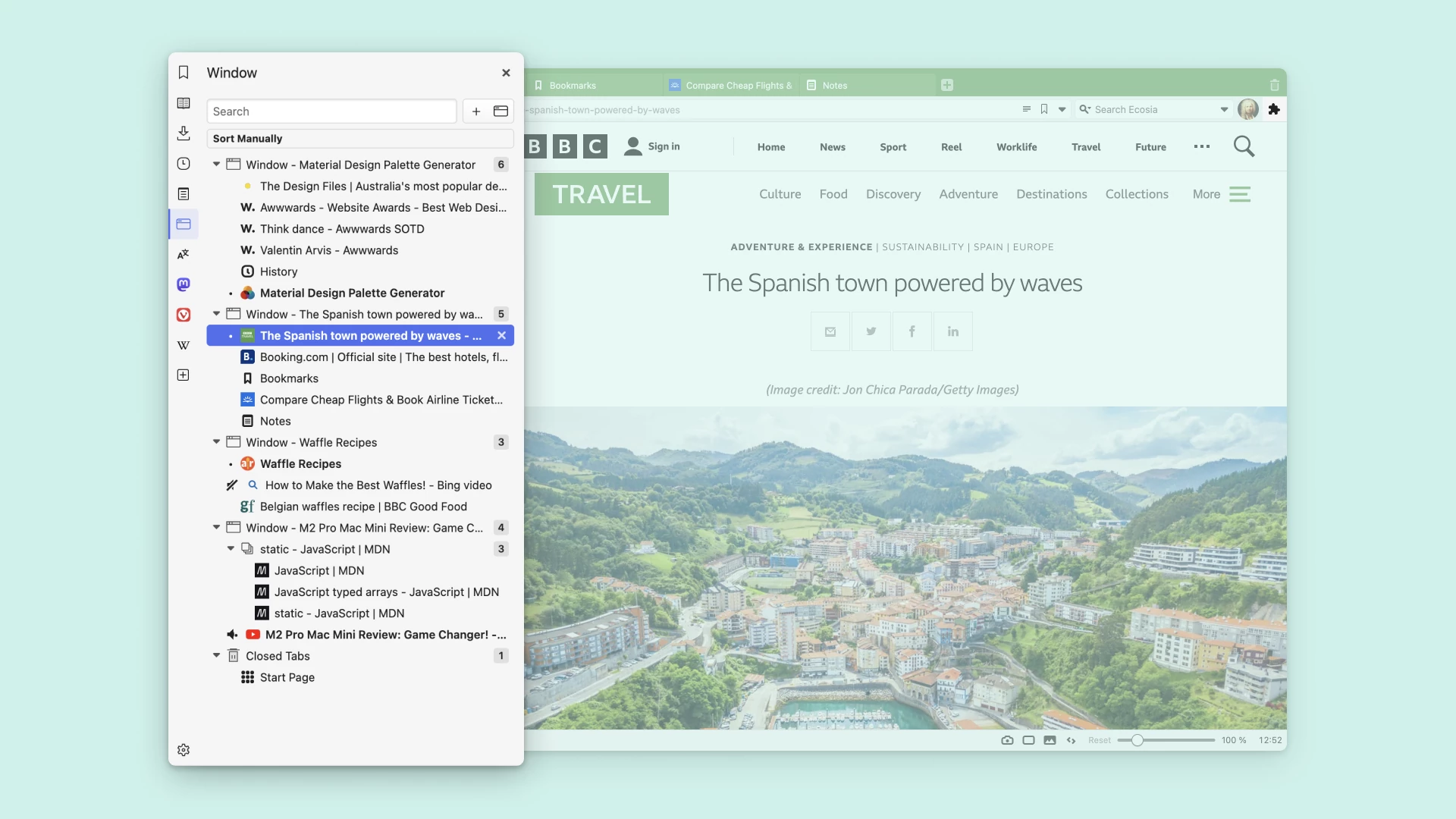
Tree-style tabs
Use the Windows and Tabs Panel to browse windows and tab stacks in a tree view. Expand a group to see its pages and select the one you need; you can hide the tab bar if you prefer managing tabs from the panel.
Desktop browser · Tabs
Group related pages and compare them side by side.
Use Vivaldi’s desktop tab tools to change the tab layout, find open pages and return to saved sessions.
Keep research sources in a stack, move the tab bar to the side or tile selected pages for comparison. These controls are built into Vivaldi on Windows, macOS and Linux; mobile tab options differ.
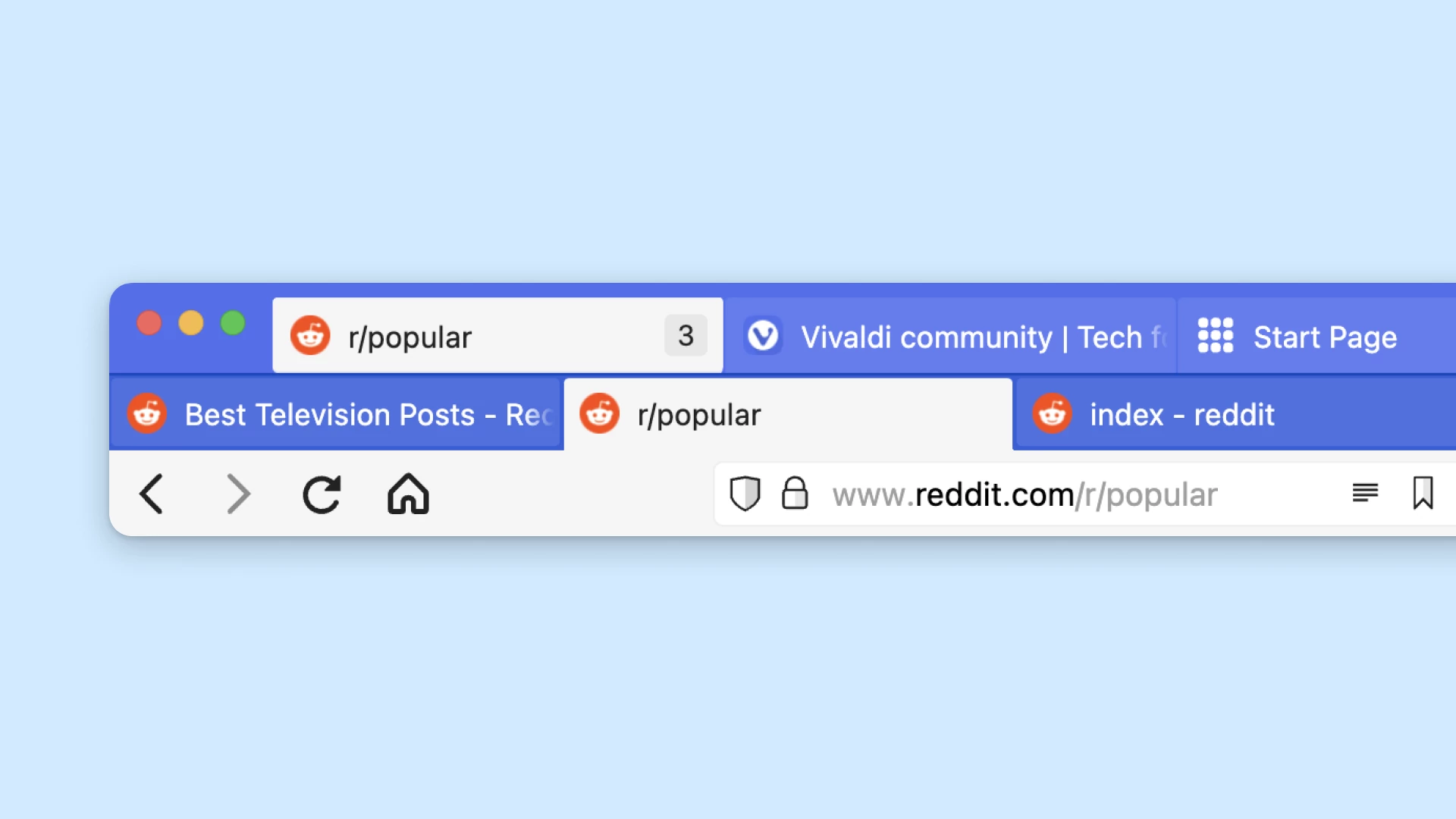
Two-level tab stacks separate groups from their contents: choose a stack on the main row, then select a page on the second row. Group a project’s documents, reference pages and task board without mixing them with unrelated tabs.
Give each stack a descriptive name. You can also tile its pages for comparison or hibernate inactive tabs when you want to reduce memory use.
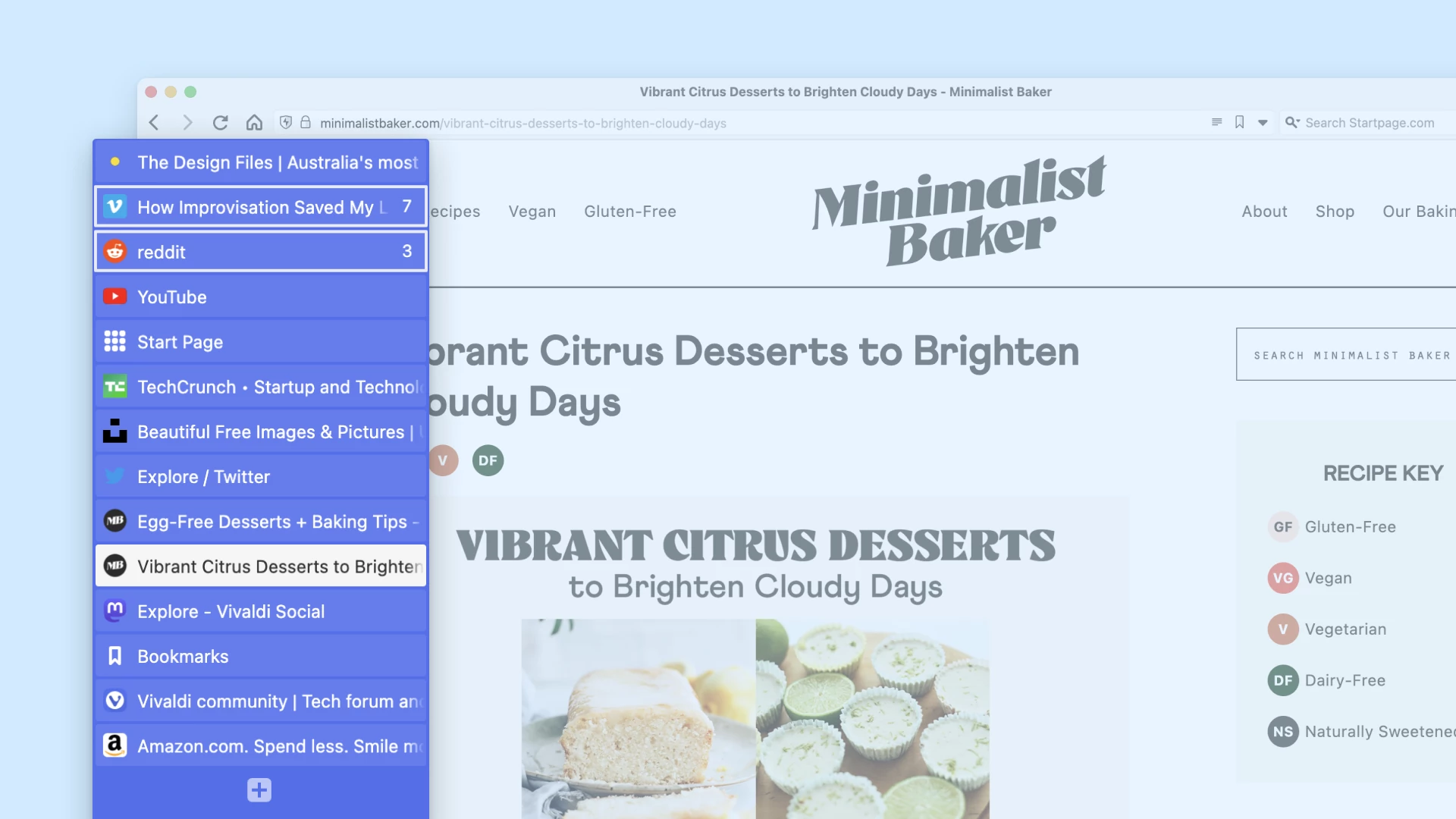
Place the tab bar on the left or right in Settings > Tabs. A vertical list gives titles more room than a crowded horizontal bar, though long titles can still be cut off.
Adjust the layout to your screen: a side bar uses horizontal space that could otherwise display the page. On a narrow window, a top or bottom tab bar may leave more room for content.
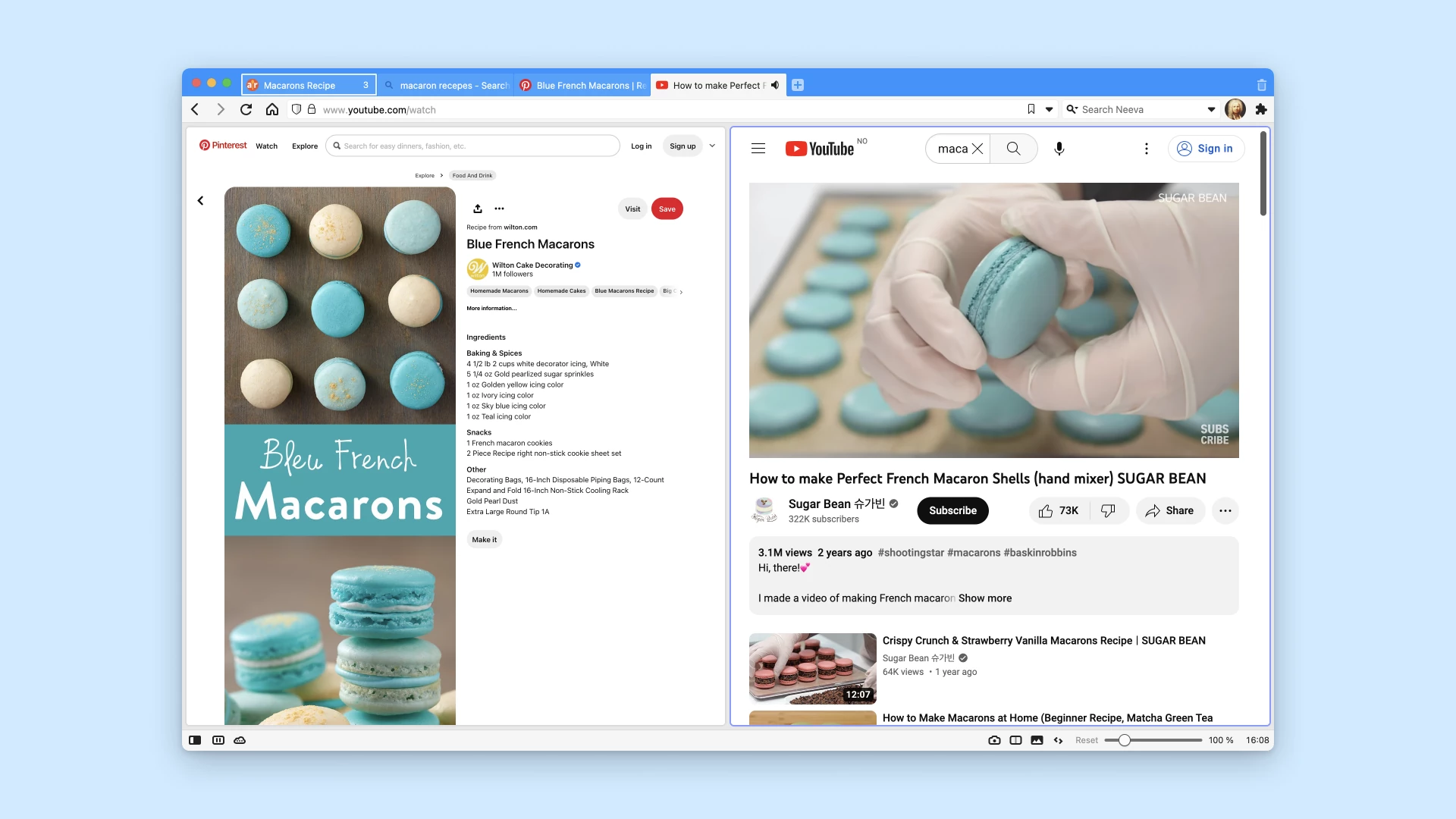
Tab tiling displays selected pages together in one browser window. Choose a vertical, horizontal or grid arrangement to compare prices, read documentation beside an editor or monitor a dashboard.
Each page remains a separate tab. Start with two or three pages and resize the tiles as needed; adding more tiles leaves less space for each site’s content.
Find an existing page, keep a set for later or control background activity. Choose the tool that matches the task rather than keeping every page active.
Use the Windows and Tabs Panel to browse windows and tab stacks in a tree view. Expand a group to see its pages and select the one you need; you can hide the tab bar if you prefer managing tabs from the panel.
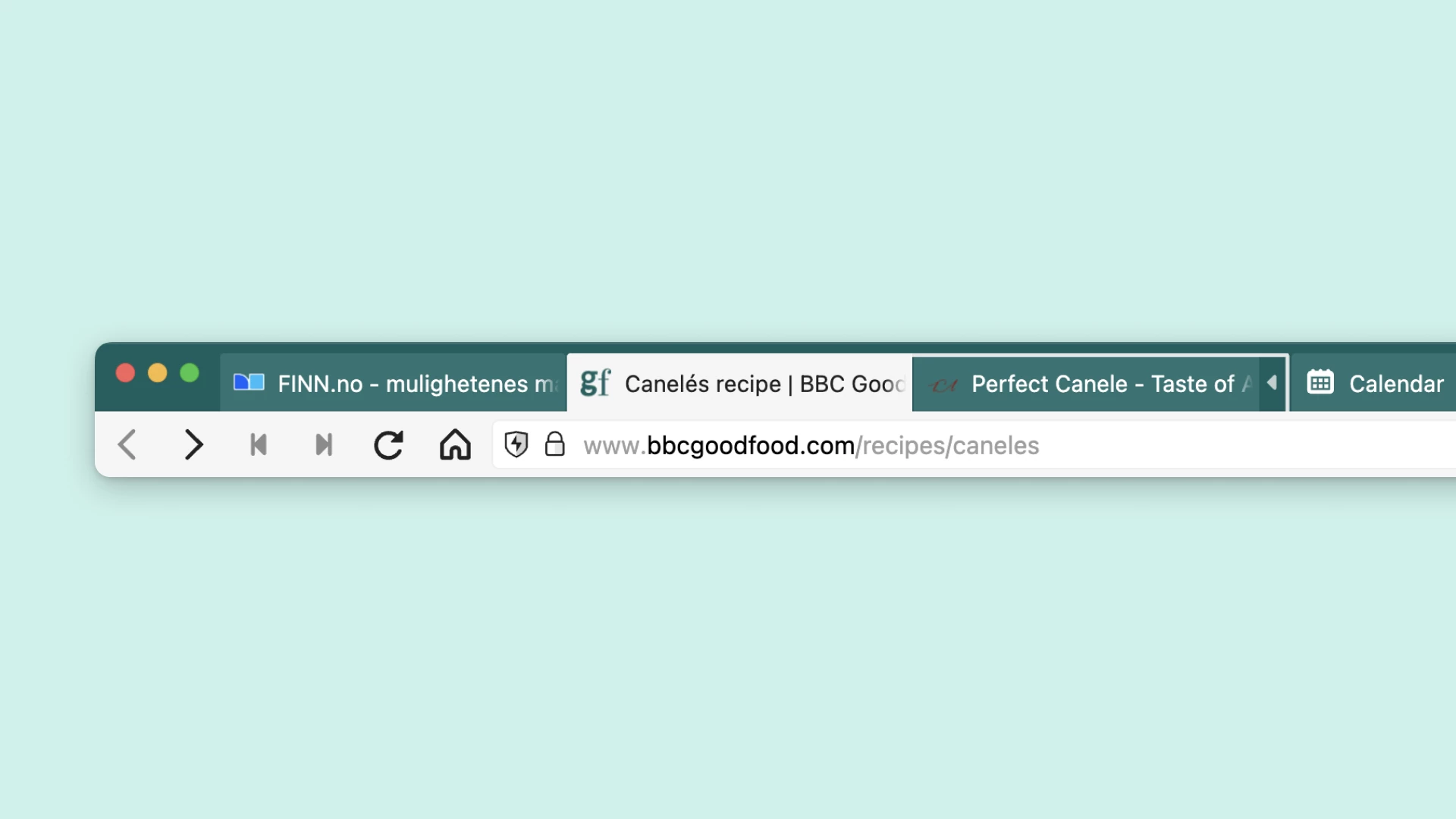
Accordion stacks collapse a group into a smaller space on the tab bar. Expand a stack to choose one of its pages, then collapse it when you move to another task.
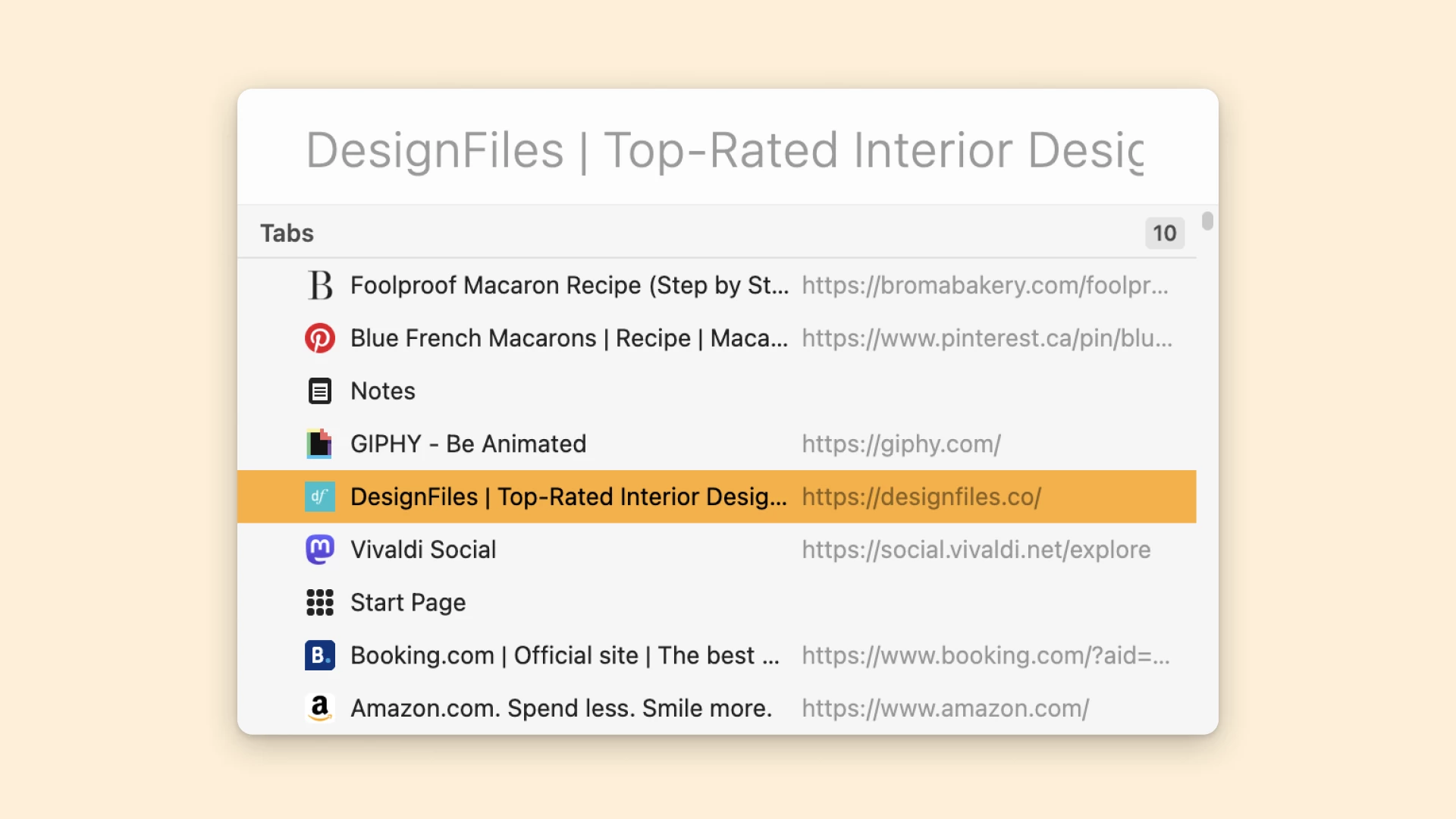
Open Quick Commands with F2 on Windows or Linux, or ⌘+E on macOS, and search for an open page. Select the matching tab to switch to it instead of opening another copy.
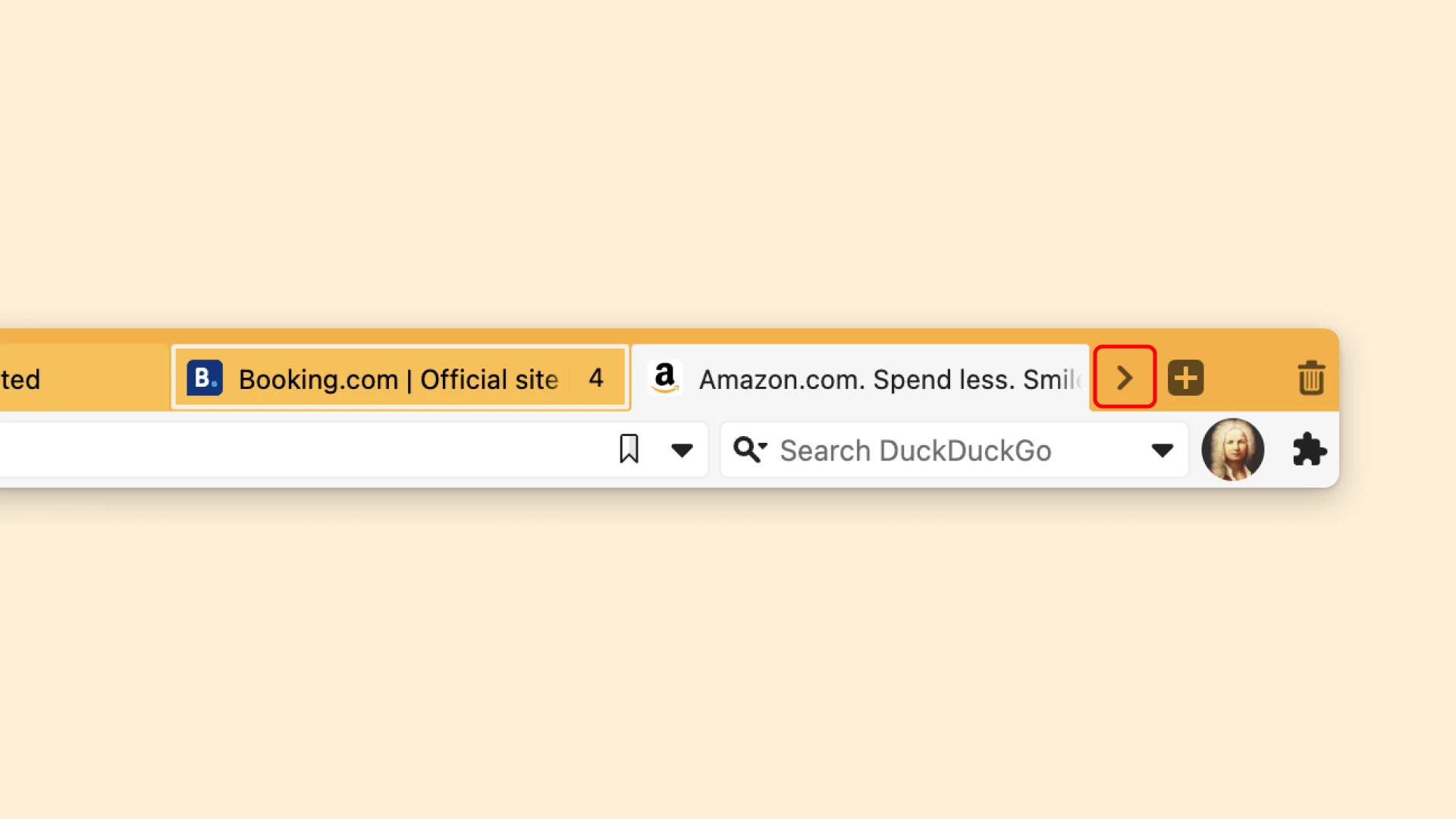
Enable horizontal scrolling for the tab bar when you want tabs to retain more width. Scroll along the bar or use its arrows; the two-level layout also supports scrolling.
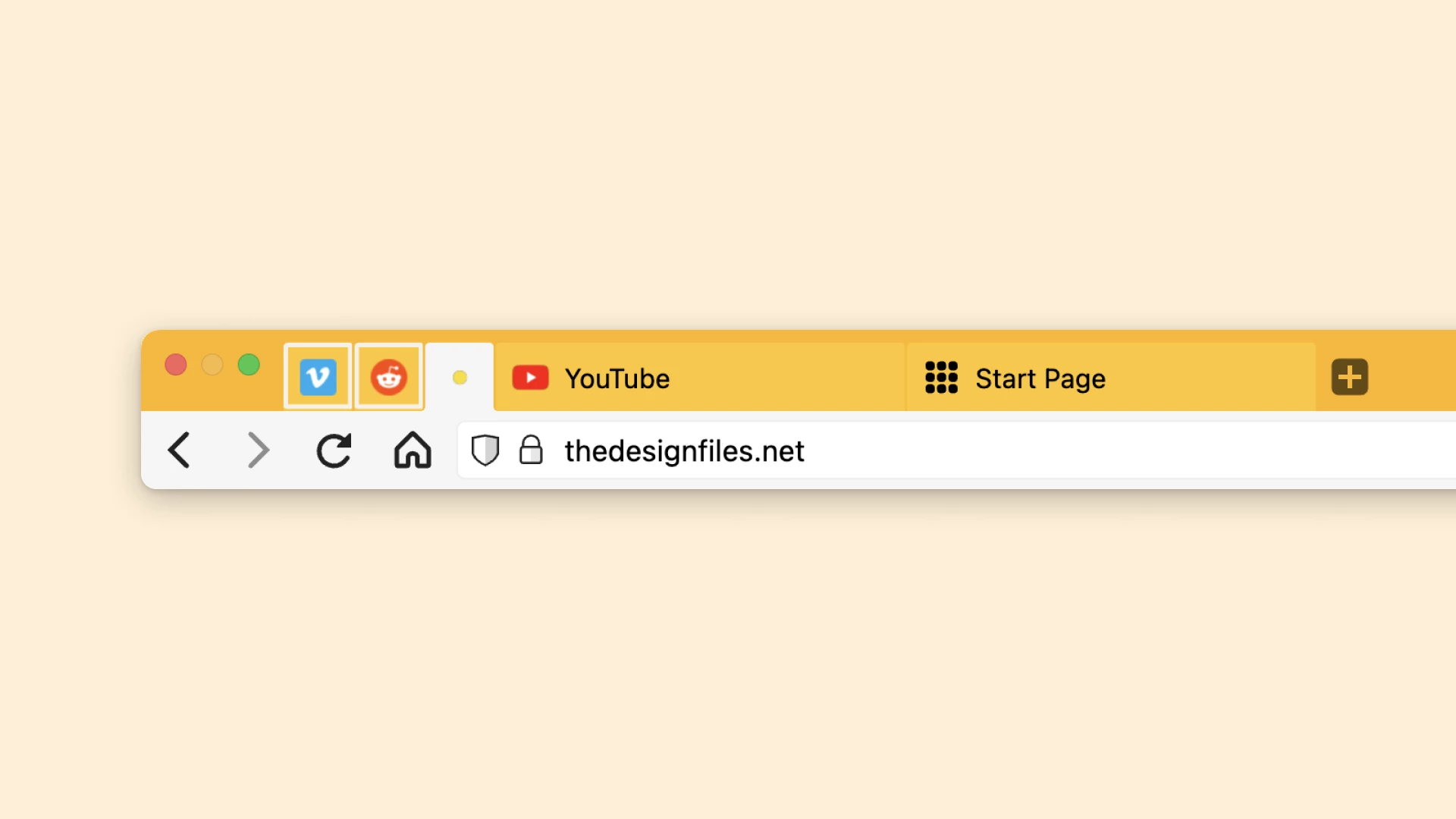
Pin a tab or stack to keep frequently used pages together at the start of the tab bar. Pinning is an organization tool: it does not save website changes or replace bookmarks.
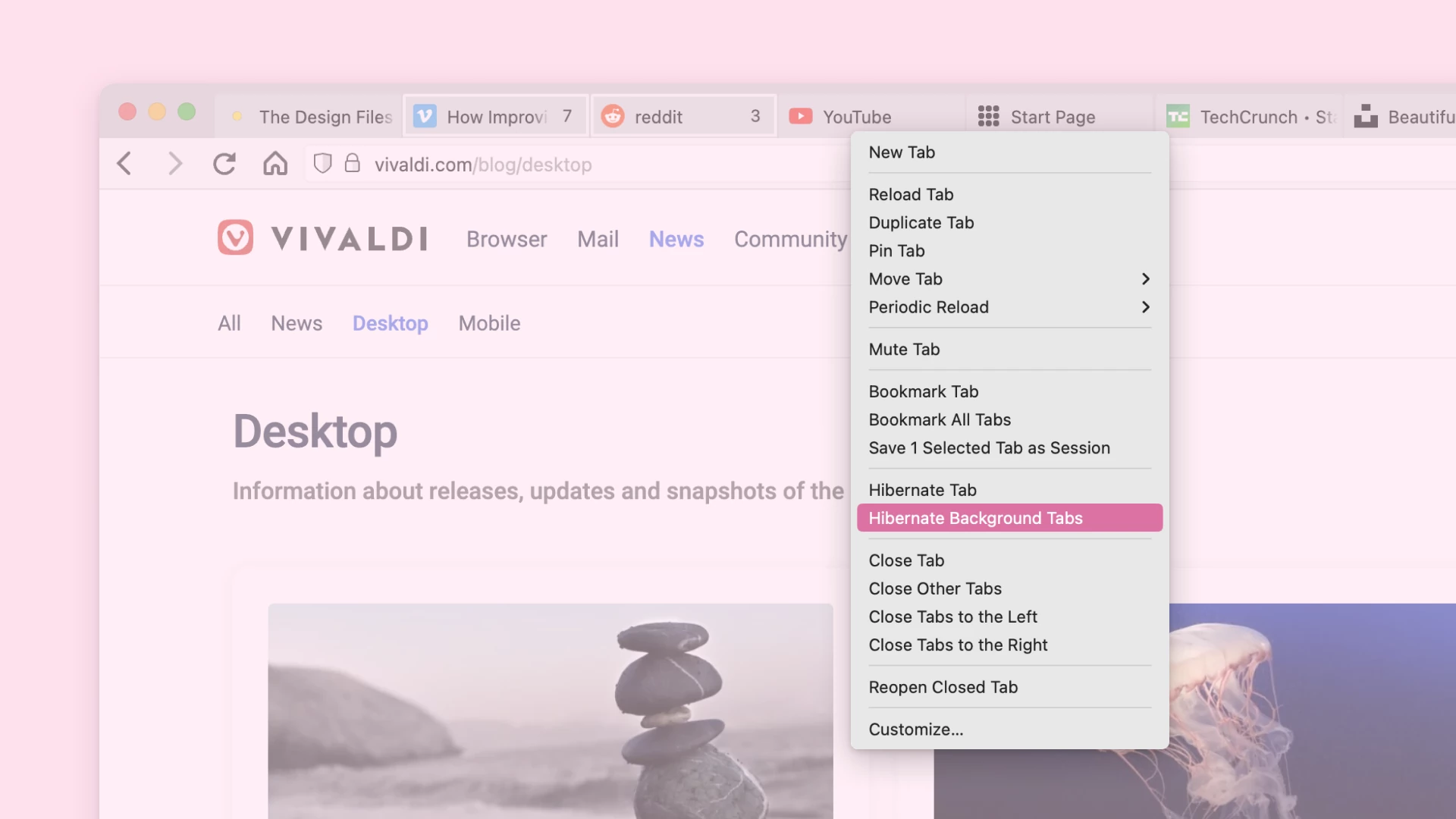
Hibernate inactive tabs or stacks to reduce memory use. Returning to a hibernated tab reloads its page, so save unfinished work first; resource savings depend on the pages and your computer.
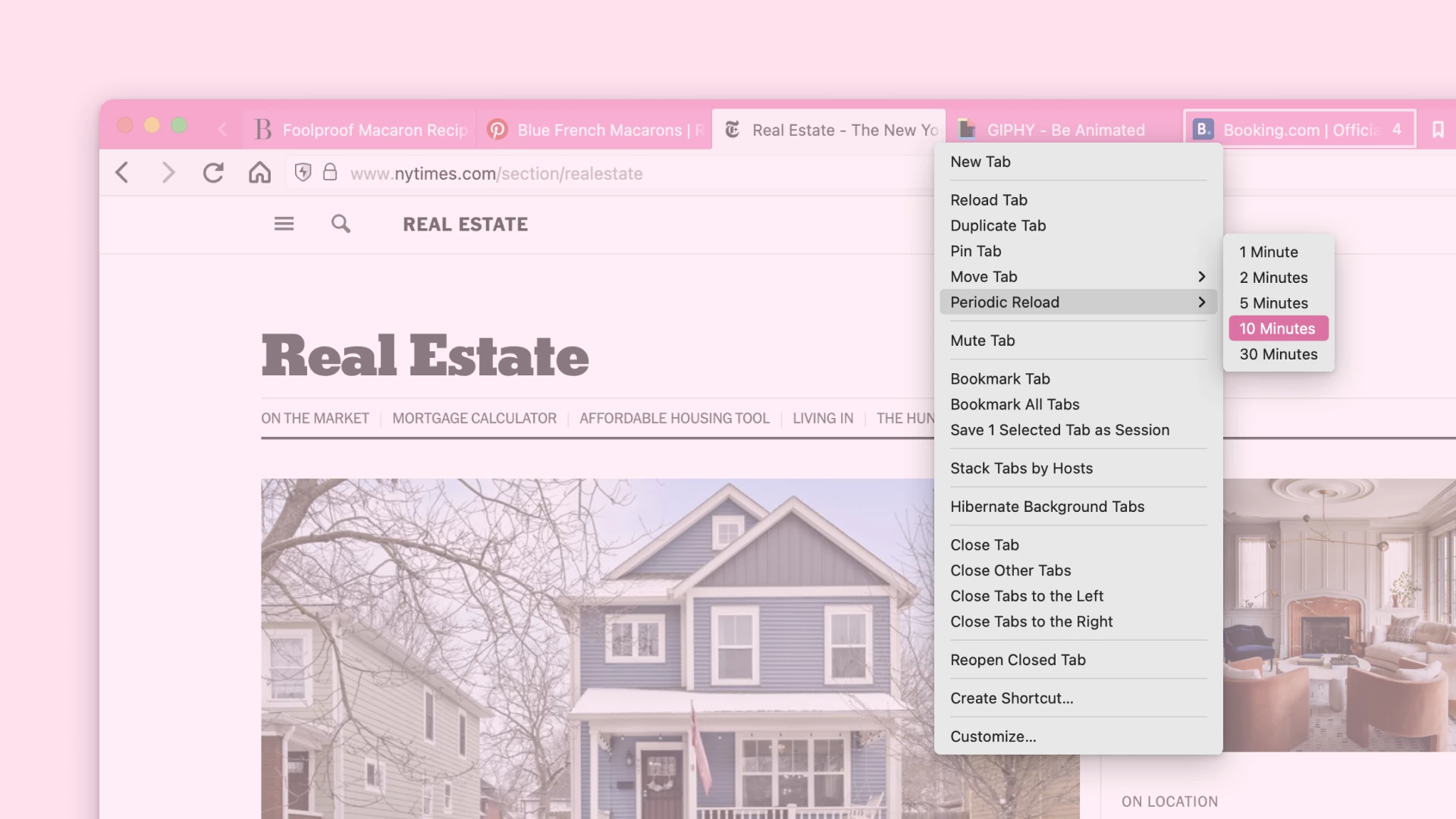
Use Periodic Reload for a page that needs manual refreshing, such as a status dashboard. Set an interval from the tab’s context menu. Reloading can interrupt unfinished input and does not guarantee that a site keeps you signed in.
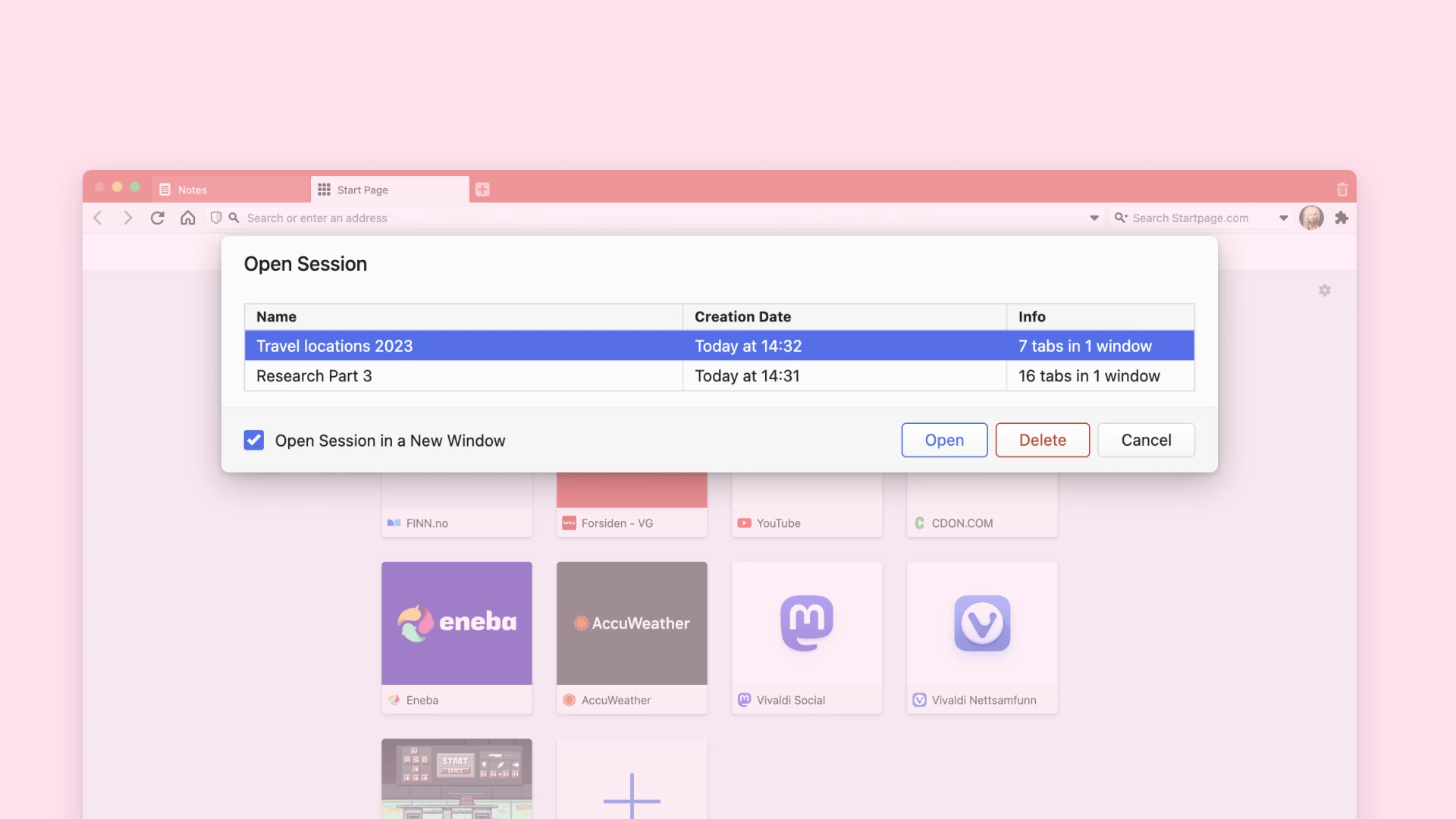
Save selected tabs or open windows as a named session, then reopen that set through the File menu or Sessions Panel. A saved session helps you return to a project; it is not a backup of page content or unsaved edits.
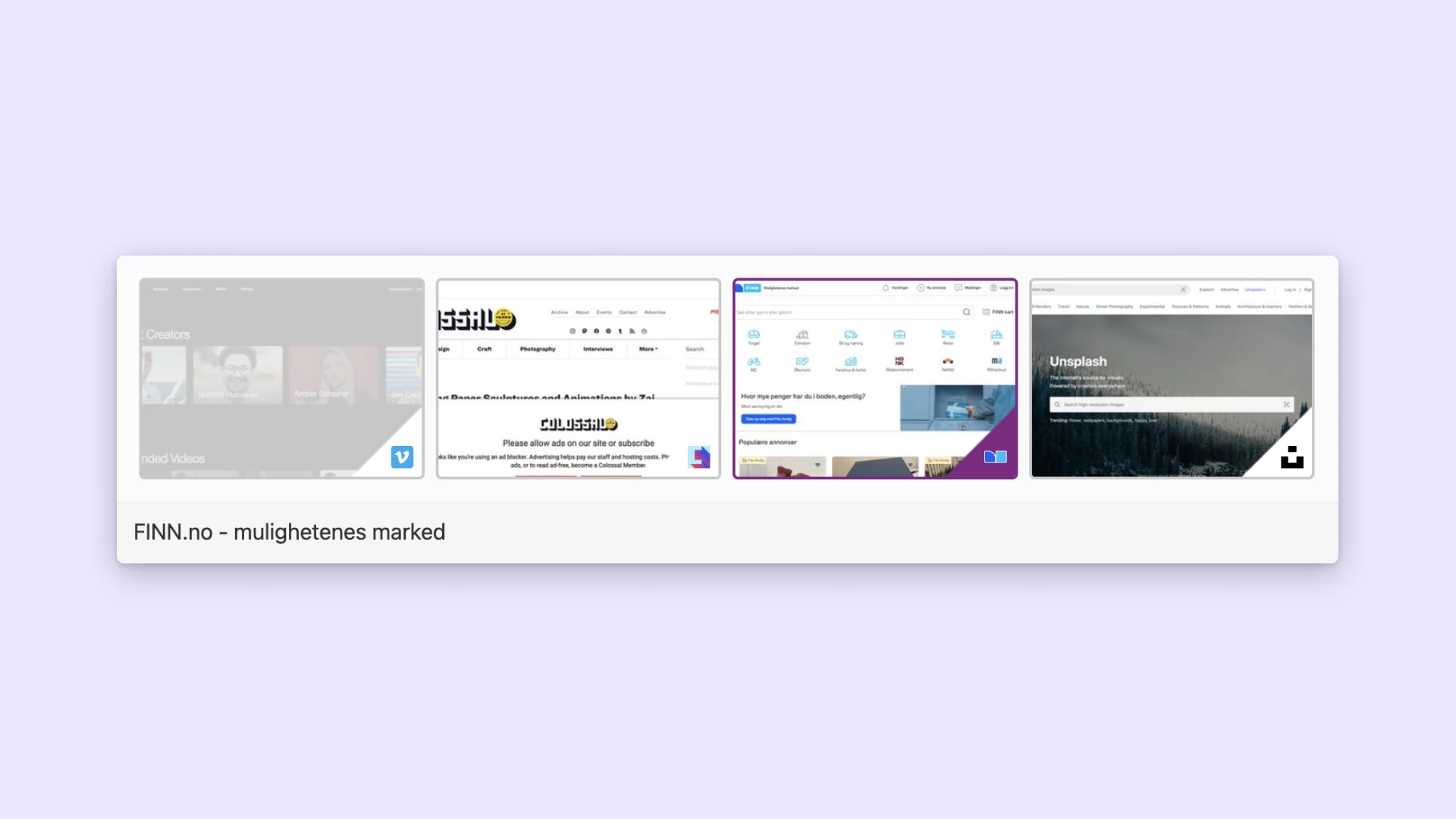
Use Ctrl+Tab to cycle through open tabs and Ctrl+Shift+Tab to reverse direction. Tab Cycling settings control the order and preview; mouse-wheel switching requires enabling Switch Tabs by Scrolling.
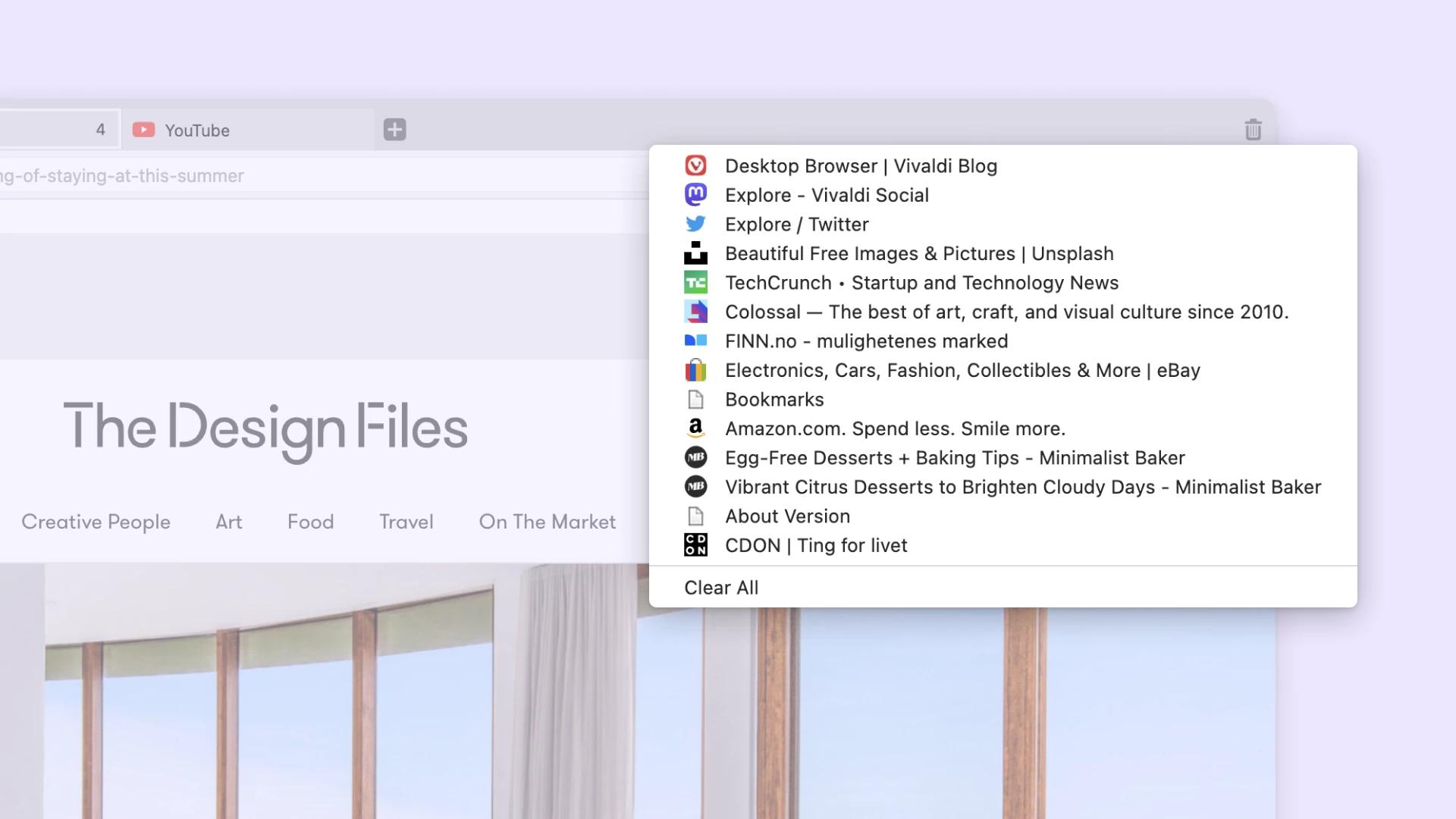
Use the Closed Tabs list to restore a recently closed page or window. Reopening a page may load it again, so the list should not be relied on to recover unfinished forms.
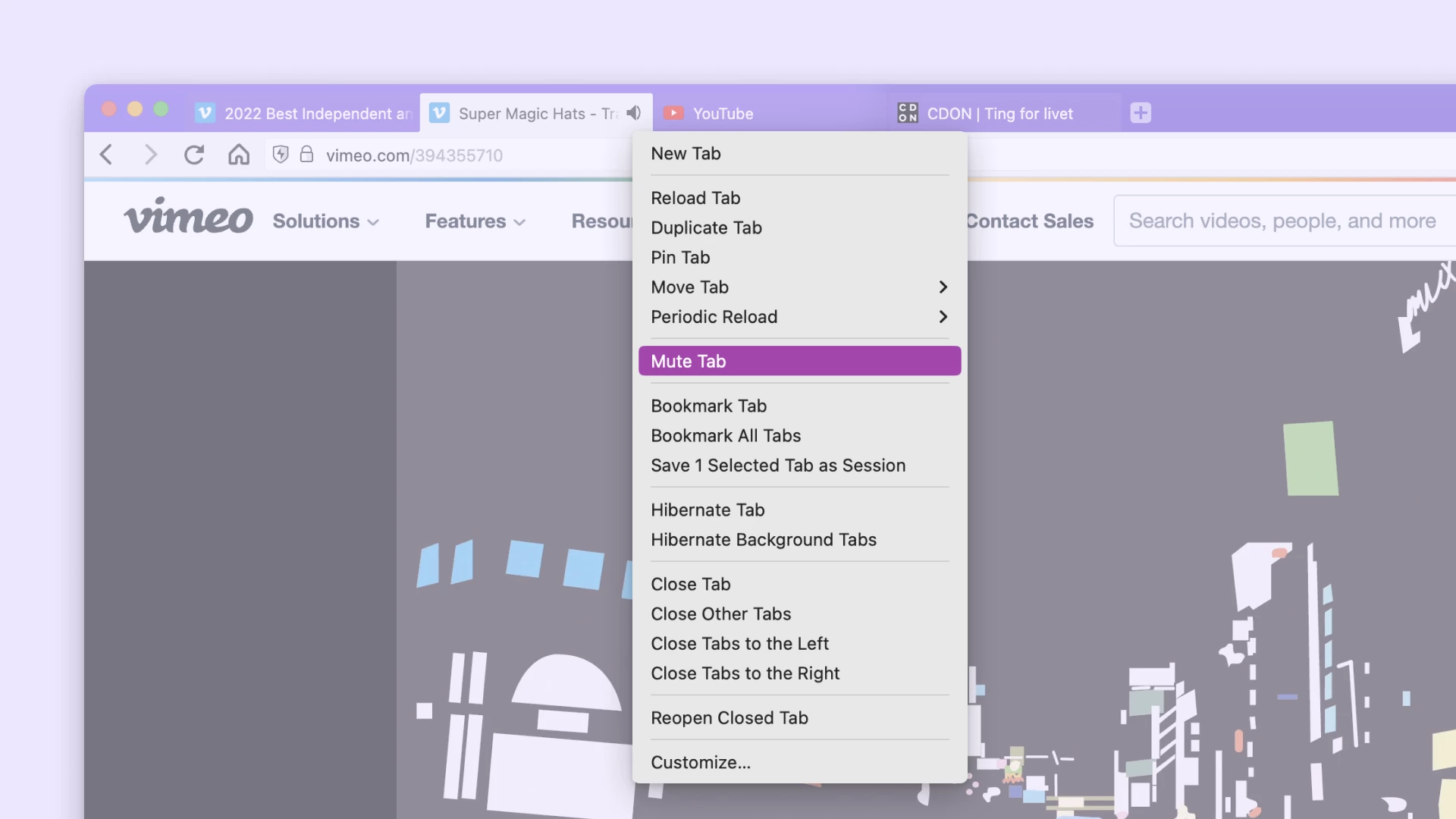
Click a playing tab’s speaker icon or use Mute Tab in its context menu. Muting silences that tab; it does not stop the video or silence every other tab from the same website.
FAQ
Setup steps for Vivaldi’s desktop tab tools, with limits to keep in mind.
With tab stacking enabled, drag one tab onto another and pause until the stack preview appears. Alternatively, select several tabs, right-click and choose the stacking option. In Settings > Tabs, choose a compact, accordion or two-level stack style.
Go to Settings > Tabs and set Tab Bar Position to Left or Right. You can return it to Top or Bottom in the same settings. The side bar takes space from the page, so check how the layout fits your window.
Hold Ctrl on Windows or Linux, or ⌘ on macOS, to select individual tabs; use Shift for a range. Right-click the selection and choose Tile, or use Page Tiling on the status bar. Select a layout and reduce the number of tiles if pages become too narrow.
Yes. Active pages can use memory and CPU even when they are in the background. Right-click a tab and choose Hibernate Background Tabs to reduce memory use. Tabs reload when revisited; save unfinished work first, and do not expect total browser resource use to fall to zero.
Use the Closed Tabs button and select the page, or press Ctrl+Shift+T on Windows or Linux (⌘+Shift+T on macOS) to reopen the last closed tab. This restores access to the page, but recovery of unsaved input depends on the website.
Vivaldi is free to download. On desktop, start with a tab stack for one project or tile two pages you need to compare.
Download Vivaldi